
How to add a live voting bracket to your phone stream with PRISM Live
Go live from your phone with PRISM Live Studio, lay your BracketTap room over your camera as a web widget, and let viewers vote on their own phones.
Want to run a bracket from your phone, whether you're out and about or on the couch? PRISM Live Studio, NAVER's free live streaming app, can lay a web page over your phone's camera. Point it at your BracketTap room, and the matchups sit right on your stream while viewers vote on their own phones.
This guide adds BracketTap's stream view to PRISM as a Web widget, with a see-through background so your camera shows behind the bracket. The steps follow PRISM's own help pages and the iPhone app as of October 2026. The web widget is in the Android app too.
New to BracketTap on stream? How to create a bracket and add it to your stream with OBS explains the room and the stream view in more detail.
What you need
- The free PRISM Live Studio app by NAVER, from the App Store or Google Play (it needs iOS 16 or Android 10 or later)
- A PRISM account, and somewhere to go live: YouTube, Twitch or Facebook (you log in to them inside PRISM), or any platform that gives you a server URL and stream key
- A BracketTap room. Running it from a second device, like another phone, a tablet or a computer, is easiest (Step 4 explains why)
- A phone stand or tripod, and good Wi-Fi or a strong mobile signal
Step 1: Create a bracket and open a room
- On the device you'll run the game from, go to Create a bracket and add your choices.
- Tap Play with friends 📱. BracketTap makes a private room with a 6-character room code, and the screen you're on becomes the Host screen.
The first guide walks through building a bracket step by step. No time to build one? Pick a ready-made bracket on Discover.
Step 2: Pick a layout and background, and copy the stream view link
- On the host screen, open 📺 Party TV or streaming? Put it on the big screen (or the 📺 TV / Stream button once the game has started).
- Under Layout, pick Tall · QR top or Tall · QR bottom if you'll hold your phone upright. Streaming with the phone on its side? Pick Wide · QR right or Wide · QR left instead.
- Under Background, pick Transparent. In PRISM the bracket's background disappears, and your camera shows through behind the bracket.
- Untick Sound effects on stream. Your link then ends in
sound=0, and the stream view never shows its 🔇 Click to turn on sound button, so nothing extra ends up on your stream. - Leave Show the join QR code and room code so viewers can vote ticked.
- Tap Copy link. A tall, transparent link without sound looks like
https://brackettap.com/stream/ABC234?bg=transparent&layout=top&sound=0.
Running the game from another device? Send the link to your phone (a message or email to yourself works) and copy it there.
Step 3: Add the bracket as a web widget in PRISM
- Open PRISM Live Studio, tap LIVE, and hold your phone the way you'll stream. PRISM follows your phone's orientation before you go live, and you can't switch once you're live. If it won't turn sideways, turn off your phone's rotation lock.
- Swipe sideways across the camera screen until you reach My Studio. It has Media, Playlist, Text and Widget buttons across the top.
- Tap Widget, then Web.
- Paste your stream view link into the URL field, give it the name "BracketTap", and tap Save.
- Your widget now has its own tile under My Studio. Tap the BracketTap tile to put the bracket on screen.
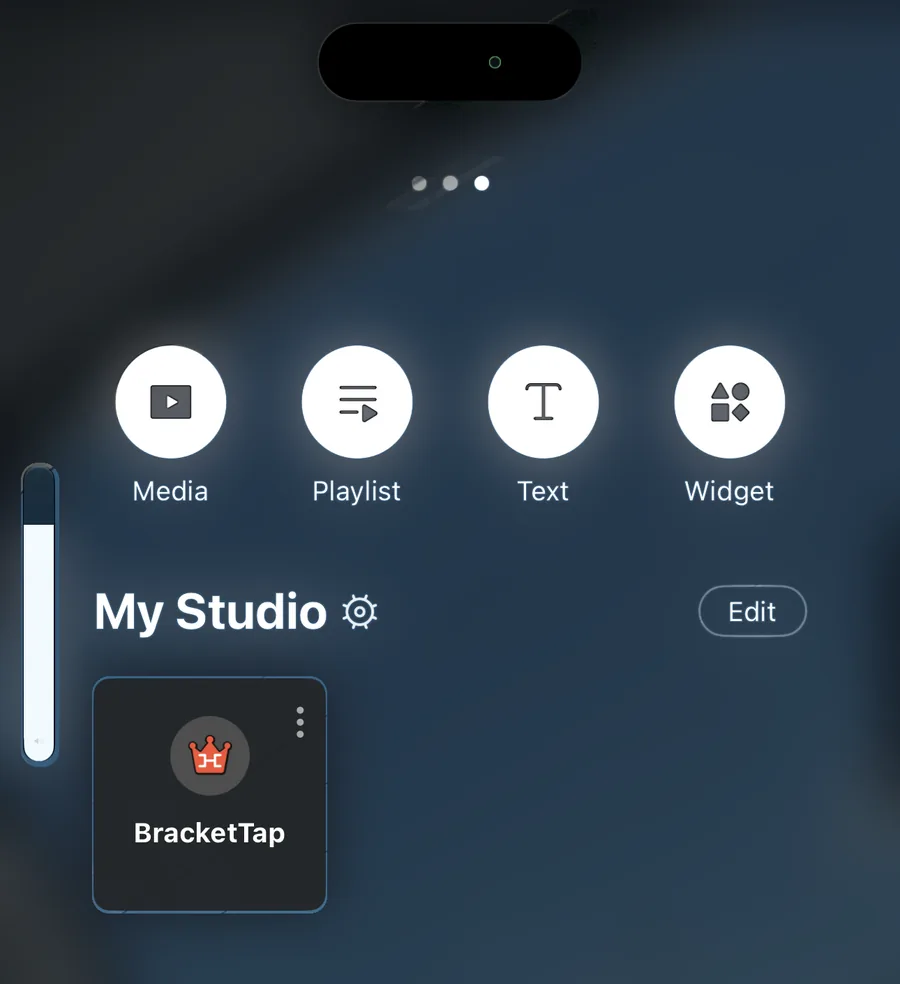
- Drag the bracket to move it, and drag its edges to resize it. With a tall layout, stretch it to fill the screen from top to bottom. The stream view scales itself to whatever size you give it.
- The + and − buttons zoom the page inside the widget. You usually won't need them, but if part of the bracket gets cut off, try zooming out.
Tip: See a 🔇 Click to turn on sound button on the bracket? That means Sound effects on stream was ticked when you copied the link, and the button stays on screen (and on your stream) until it's tapped. Tap it once inside the widget so it disappears before you go live. It comes back whenever the widget reloads, like after you reopen PRISM. The simplest fix is to untick Sound effects on stream, copy the link again (it ends in
sound=0), and paste it into the widget: then the button never shows.
Tip: Turn on layer lock for the widget if you see the option, so a stray tap doesn't move the bracket mid-stream. To turn it off again, tap the ⋮ button on the BracketTap tile in My Studio.
Step 4: Go live and run the game
- Swipe back to the camera screen and tap Ready.
- Choose where to go live. Log in to YouTube, Twitch or Facebook, or pick Custom RTMP and paste the server URL and stream key from your platform. Turn on two or more channels to go live on several at once (PRISM allows up to 6).
- Tap Go Live.
- Run the game from the host screen as usual: Start the bracket ▶, Reveal now, then Next matchup ▶. The bracket on your stream follows along by itself.
Can the host screen be on the same phone? Not really. PRISM is using that phone's camera, and it needs to stay on screen to keep you live. On iPhone, PRISM can't stream in the background at all, so switching to your browser to tap Reveal now interrupts your stream. On Android, PRISM can keep streaming in the background if you allow it to display over other apps, but swapping apps mid-stream is still fiddly. Two easy ways around it:
- Run the host screen on a second device. Another phone, a tablet or a laptop next to you works well. Tap through the matchups while you talk to the camera.
- Let the room run itself with continuous mode. On the host screen, turn on 🔁 Continuous mode and tap Start the bracket ▶, then switch to PRISM and go live. Each result shows for a few seconds, then the next matchup opens on its own with a 30-second vote timer. The stream view in your PRISM widget keeps the room moving, so you don't need the host screen open. After a champion, everyone votes on the next bracket to play. If nobody votes or joins for 15 minutes, the room pauses until you tap Keep going ▶ on the host screen.
Tips for phone streams
- Say the room code out loud. Most people watching a phone stream are watching on their phone, and you can't scan a QR code on the screen you're holding. Every so often, tell viewers to go to brackettap.com/join and type the room code. Where your platform allows it, put the code in your stream title or a pinned comment too. The QR code still works for anyone watching on a TV or a computer.
- Keep the bracket clear of comments. Comments and buttons usually cover the bottom of a vertical stream, so Tall · QR top keeps the QR code and room code out of their way. If you add PRISM's own chat widget, place it where it won't cover the matchups.
- Check what viewers see. Phone screens come in different shapes, so your screen and your viewers' can show slightly different edges. In PRISM, tap the More button in the top-left corner and switch to View Screen Fit to see the whole picture viewers get, then make sure the QR code and room code aren't cut off.
- Turn off Screen saver. It's there for TVs left on for hours: about every 10 minutes it moves the QR panel to the other end of the screen. Untick Screen saver on the host screen before you copy your link.
- Bracket gone after reopening PRISM? Your widget stays saved in My Studio. Swipe over and tap the BracketTap tile to put it back.
- Keep your phone cool and charged. Live video works a phone hard. Plug it in for long streams, and keep it out of direct sun.
FAQ
Do I need PRISM Plus?
No. PRISM's free version shows up to two overlays at once, and the bracket only needs one. Plus adds more overlays and lets you remove the PRISM watermark.
Can I go live on TikTok with PRISM?
TikTok isn't one of the platforms you log in to inside PRISM. If TikTok gives your account a server URL and stream key for LIVE (not every account gets them), paste them into Custom RTMP. TikTok makes a new key for each stream, so paste the fresh one every time.
Should I stream upright or sideways?
Upright, with a Tall layout, suits TikTok, YouTube Shorts and anyone watching on a phone. Sideways, with a Wide layout, suits YouTube and Twitch viewers on a TV or computer. Pick before you go live, because PRISM can't switch once you're live.
Does the stream view in PRISM count as a player?
No. It only watches the room. Only phones that join with the QR code or room code count as players.
Can I use the widget in PRISM's Screencast mode?
Screencast mode (streaming your phone's screen) has a Web source too. On iPhone, though, web overlays in Screencast mode only show to your viewers, not on your own screen, so it's harder to check the bracket's position. Camera mode, as in this guide, shows it to you as well.
Ready to go live from your phone? Create a bracket, or grab a ready-made one on Discover. Streaming from a computer instead? See How to create a bracket and add it to your stream with OBS or How to stream your bracket vertically on TikTok and YouTube Shorts with OBS.
Using a different app? See our guides for Streamlabs Desktop and TikTok LIVE Studio.
Make a bracket in seconds, or play one of ours with your audience.